
Draw by Avatar with the Hall of Honor template
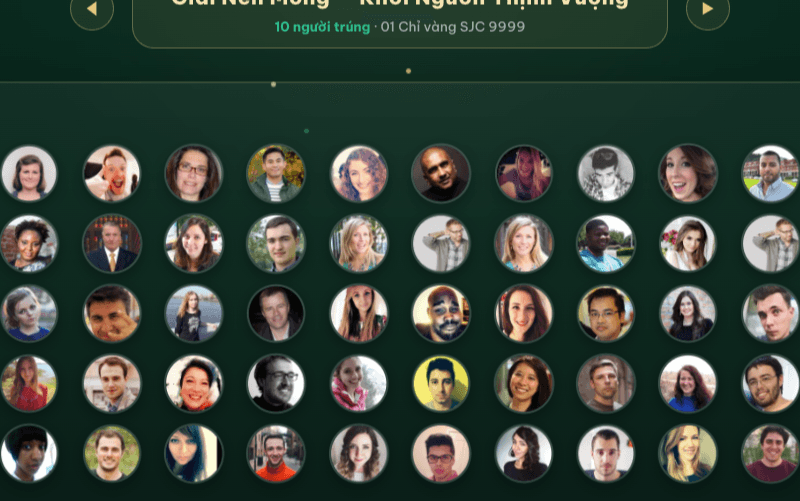
Every participant appears as a portrait on a photo wall; each spin picks several people at once, and winners are revealed one by one and seated in the honor row. Follow the 5 steps below, or download the 60-person sample data set to try it in a few minutes.
Download the sample data set
The sample has 60 people with codes NV001 … NV060: an Excel list and 60 portraits named exactly by code. Use it to rehearse the whole flow before importing real data.
- Full set (recommended)One zip with the Excel list, the avatars/ folder of 60 photos and HUONG-DAN.txt.bo-du-lieu-mau-60.zip · 328 KBDownload
- Participant list60-row Excel file with Code, Full name, Position, Department columns — used in step 2.nguoi-tham-du-60.xlsx · 7 KBDownload
- Profile photosZip of 60 photos NV001.jpg … NV060.jpg (file name = code) — unzip, then use in step 3.avatars-60.zip · 323 KBDownload
For testing only: the portraits come from a free sample photo source, not real event attendees. When you're done, go to Attendees → Delete all before importing your real list.
Choose By Avatar and the Hall of Honor template
The spin type decides how the draw page looks. Choosing By Avatar adds a photo column to the participant list and unlocks draw-screen templates made for photos.
- 1Go to the admin, pick your event and open the Spin type menu.
- 2Select the By Avatar card.
- 3In the Draw screen design block below, click Hall of Honor (the card shows SELECTED). Click the selected template again to clear it — the draw page goes back to the default look.
- 4Click Save settings. Until you save, the draw page keeps the old style.
Preview first: the View demo button on the template card opens Hall of Honor with fake data, without touching your event.
Import the participant list
Import the list first, photos second — photos are matched to each person by code.
- 1Open the event's Attendees menu.
- 2Click Upload file and choose your Excel file, e.g.
nguoi-tham-du-60.xlsxfrom the sample. - 3Check the columns are detected correctly (Code, Full name, Position, Department) and confirm the import. You're done when all 60 people are listed.
The code is the key: every person needs a unique code (e.g. NV001). Step 3 matches photos by exactly this code.
Position and department: only shown under the photo on the draw screen when that column is turned on under the participant list's Settings button. The name is always shown.
Bulk-import avatars
Upload the whole photo set at once — each photo is attached to the right person based on its file name.
- 1Unzip
avatars-60.zip(or the full set) into a folder on your computer. - 2On the Attendees page, click Import avatars. The button only shows when the spin type is By Avatar, and is only clickable once the list has people.
- 3Drag all 60 photos into the Bulk import avatars window (or click Choose images). Photos that match a code show Code matched.
- 4Click Upload 60 images. The Avatar column in the list now shows each person's photo.
File naming rule: file name (without extension) = participant code, e.g. NV001.jpg → code NV001. JPEG, PNG and WebP up to 5MB each. Photos flagged No match for code are not uploaded.
Change one person's photo: click Edit on that person's row, then Change photo or Remove photo in the edit window.
Draw on the Hall of Honor screen
Open the draw page on the projector or LED wall. All participants form a photo wall; winners are excluded from later prizes.
- 1Open the draw page
/app/event/[event code]— or click Open spin page on the Spin type page. - 2Pick a prize with Previous prize / Next prize. The spin button shows how many people this spin draws: Draw N lucky winners.
- 3Click the spin button (or press Space), then Stop. Winners are revealed one by one and take their seats in the honor row.
- 4On the Congratulations screen, click Done — back to standby (or Enter/Space on a presentation clicker) to move on.
- 5The List & Results button opens the Hall of Honor board with every winner so far; click Back to stage or press Esc to return.
How many people per spin? the prize's Winners per spin setting (Prizes page), capped by the prize's remaining slots and the people not yet drawn.
Winner absent? Remove and redraw
Remove absent winners right on the draw screen, then draw again for exactly the missing slots.
- 1While the Congratulations screen is up (before clicking Done), hover over the absent person's photo in the honor row and click the remove button that appears.
- 2Confirm Delete this result?. The person is removed from that prize's results.
- 3Click Done and spin again — the button automatically switches to the number of missing slots.
Adding people mid-show: if you add people or photos in the admin while the draw tab is open, press F5 on the draw tab to reload the list. Results already drawn are kept.
Frequently asked questions
Common snags when drawing by avatar.
I can't see the Import avatars button?+
It only shows when the event's spin type is By Avatar (and Save settings was clicked), and it's only clickable once the list has at least one person. Import the list first, then the photos.
A photo says "No match for code"?+
The file name (without .jpg/.png) must equal the code of someone in the list. Check for spaces or extra characters, rename the file to the exact code and choose it again.
The draw page still shows the old look?+
On the Spin type page, By Avatar must be selected, the Hall of Honor template picked, and Save settings clicked. If the draw tab was already open, press F5 to reload.
What about people without a photo?+
People with no photo (or a broken one) show the first letter of their name in a circle and are drawn as normal.
How do I draw more or fewer people per spin?+
Change the prize's "Winners per spin" on the Prizes page. The prize's last spin shrinks automatically to fit the remaining slots.
Adding people or photos while the draw page is open?+
Add them in the admin as usual, then press F5 on the draw tab to load the new list. Drawn results are not lost.
Can I use the sample data for a real event?+
Better not — the sample is only for rehearsing. Afterwards, delete all participants and the test results, then import your real list and photos following the file name = code rule.
More guides
- Set up a lucky draw eventAppearance, prizes, participants, results and sound, button by button with real screenshots.Read the guide
- Running the draw on the nightThe draw page, the stage screen for LED walls and the Control page: device setup, shortcuts and a pre-show checklist.Read the guide
- Remote draw controlGo fullscreen on the projector, then start draws and confirm results from your phone or the Luck4You Event app.Read the guide